Matplotlib for Interactive Visualizations
Matplotlib is not just for static plots—it also offers interactive features that can enhance data exploration. This article keeps the complete progression from backend selection through one slider, multiple controls, in-place updates, and linked plots. Every example uses Matplotlib's public widget API and also runs with a non-interactive backend for verification.
1. Using Interactive Backends in Matplotlib
Interactivity depends on the backend selected by the application or notebook. GUI backends can open a window with pan and zoom controls; static backends such as Agg write files. In Jupyter, %matplotlib widget can select an interactive notebook backend when ipympl is installed, while %matplotlib inline produces static output. Magic commands are notebook syntax, not Python, so reusable modules should not contain them.
1.1 Inspecting the Selected Backend
Select a backend before creating figures, preferably through the environment or host application. This portable example reports the selected backend without changing it:
import matplotlib
import matplotlib.pyplot as plt
import numpy as np
from matplotlib.widgets import Slider

backend = matplotlib.get_backend()
assert isinstance(backend, str) and backend
The automated examples use the Agg backend. Run the same code under a GUI or widget backend to interact with the controls.
1.2 Interactive Features: Zooming and Panning
Interactive backends usually provide toolbar controls for zooming and panning. Their exact controls vary by backend, so test the intended environment. Do not make a conclusion available only through a pointer interaction.
2. Adding Interactivity with Widgets
Matplotlib's matplotlib.widgets module provides sliders, buttons, check boxes, and other controls. These are independent of ipywidgets; a notebook may use either system depending on its backend.
2.1 Creating an Interactive Plot with a Slider
The slider callback updates the line whenever the frequency changes. Calling set_val exercises the same public callback path during automated verification.
x = np.linspace(0, 2 * np.pi, 1000)
fig, ax = plt.subplots(figsize=(8, 4.5))
fig.subplots_adjust(bottom=0.25)
(line,) = ax.plot(x, np.sin(x))
ax.set(
    title="Sine wave controlled by frequency",
    xlabel="Angle (radians)",
    ylabel="Amplitude",
    ylim=(-1.1, 1.1),
)

slider_ax = fig.add_axes([0.2, 0.08, 0.65, 0.04])
frequency_slider = Slider(slider_ax, "Frequency (Hz)", 0.1, 5.0, valinit=1.0)

def update_frequency(frequency):
    line.set_ydata(np.sin(frequency * x))
    fig.canvas.draw_idle()

frequency_slider.on_changed(update_frequency)
frequency_slider.set_val(2.0)
plt.show()
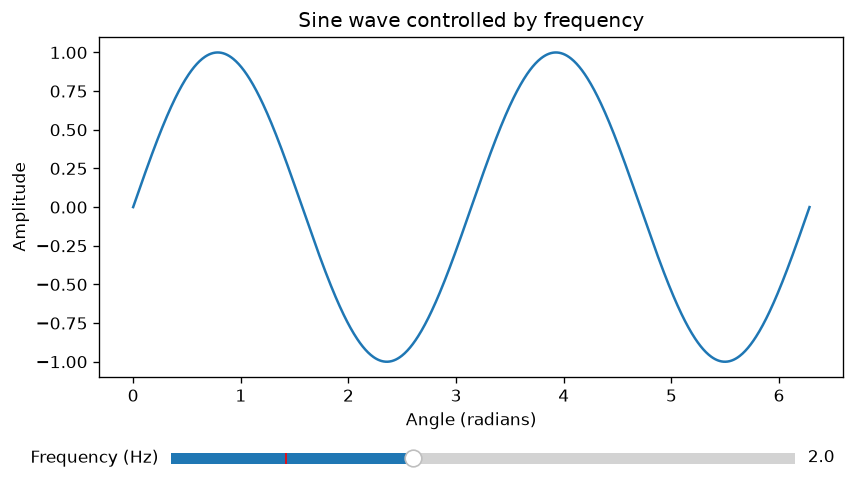 Figure 1: The verified fallback image shows the state at 2 Hz; an interactive backend also displays the slider.
2.2 Adding Multiple Widgets
Multiple sliders can control independent parameters. Each callback reads both current values so either slider produces a consistent result.
fig, ax = plt.subplots(figsize=(8, 4.5))
fig.subplots_adjust(bottom=0.32)
(line,) = ax.plot(x, np.sin(x))
ax.set(
    title="Sine wave controlled by frequency and amplitude",
    xlabel="Angle (radians)",
    ylabel="Amplitude",
    ylim=(-2.1, 2.1),
)

frequency_ax = fig.add_axes([0.2, 0.14, 0.65, 0.04])
amplitude_ax = fig.add_axes([0.2, 0.07, 0.65, 0.04])
frequency_slider = Slider(frequency_ax, "Frequency (Hz)", 0.1, 5.0, valinit=1.0)
amplitude_slider = Slider(amplitude_ax, "Amplitude", 0.1, 2.0, valinit=1.0)

def update_wave(_value):
    line.set_ydata(amplitude_slider.val * np.sin(frequency_slider.val * x))
    fig.canvas.draw_idle()

frequency_slider.on_changed(update_wave)
amplitude_slider.on_changed(update_wave)
frequency_slider.set_val(1.5)
amplitude_slider.set_val(1.6)
plt.show()
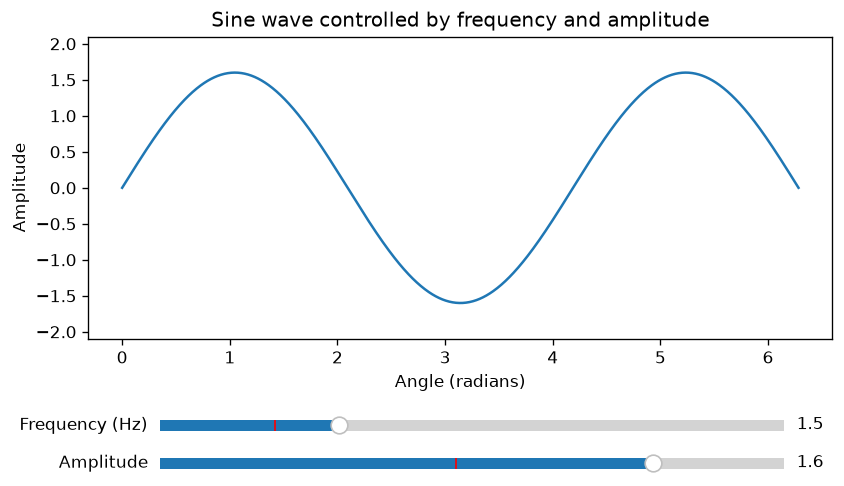 Figure 2: The verified state after both slider callbacks run.
2.3 Updating Existing Artists in Real Time
For frequent updates, modify an existing artist instead of clearing and rebuilding the axes. This retains labels, limits, and other artists and usually requires less work.
fig, ax = plt.subplots(figsize=(8, 4.5))
fig.subplots_adjust(bottom=0.25)
(line,) = ax.plot(x, np.sin(x))
ax.set(
    title="In-place sine-wave update",
    xlabel="Angle (radians)",
    ylabel="Amplitude",
    ylim=(-1.1, 1.1),
)
slider_ax = fig.add_axes([0.2, 0.08, 0.65, 0.04])
realtime_slider = Slider(slider_ax, "Frequency (Hz)", 0.1, 5.0, valinit=1.0)

def update_in_place(frequency):
    line.set_ydata(np.sin(frequency * x))
    fig.canvas.draw_idle()

realtime_slider.on_changed(update_in_place)
realtime_slider.set_val(3.0)
assert np.isclose(line.get_ydata()[100], np.sin(3.0 * x[100]))
plt.close(fig)
In a GUI backend, moving the slider produces repeated in-place updates. The assertion verifies the state change without requiring a display.
3. Advanced Interactivity: Linking Plots and Data
For more advanced interactivity, one control can update multiple plots. Keep related axes on consistent scales when readers need to compare them.
3.1 Linking Plots Together
fig, (ax1, ax2) = plt.subplots(1, 2, figsize=(10, 4.5), sharey=True)
fig.subplots_adjust(bottom=0.25)
(sine_line,) = ax1.plot(x, np.sin(x), color="#0072B2")
(cosine_line,) = ax2.plot(x, np.cos(x), color="#D55E00", linestyle="--")
ax1.set(title="Sine wave", xlabel="Angle (radians)", ylabel="Amplitude", ylim=(-1.1, 1.1))
ax2.set(title="Cosine wave", xlabel="Angle (radians)")
slider_ax = fig.add_axes([0.2, 0.08, 0.65, 0.04])
linked_slider = Slider(slider_ax, "Frequency (Hz)", 0.1, 5.0, valinit=1.0)

def update_plots(frequency):
    sine_line.set_ydata(np.sin(frequency * x))
    cosine_line.set_ydata(np.cos(frequency * x))
    fig.canvas.draw_idle()

linked_slider.on_changed(update_plots)
linked_slider.set_val(2.5)
plt.show()
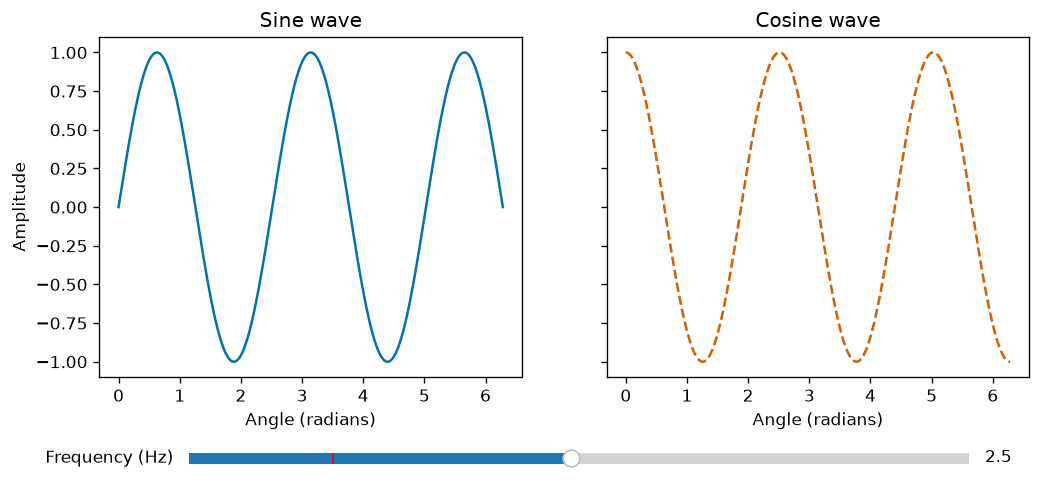 Figure 3: One public callback updates both lines.
The two series use color and line style rather than color alone. For production interfaces, controls must also be keyboard operable, expose visible focus, and announce meaningful state changes. Provide the key result and values as text or a table because canvas interactions and hover-only tooltips are not a complete accessible alternative.
4. Conclusion
Interactive visualizations can support exploration, but their behavior depends on the selected backend and host environment. Use callbacks that update existing artists, test them through public methods such as Slider.set_val, and retain a static, labelled fallback. The next article explores how Matplotlib integrates with pandas for data visualization.
Sources
APIs and examples checked with Matplotlib 3.11.2 and NumPy 2.5.3 on 2026-10-11.